We’re excited to announce the new release of MadCap Lingo 10.2, which brings enhancements and improvements to streamline the translation workflow. This release is available to all MadCap Lingo 10 and 10.1 users, and available for download now.
Here’s an overview of what’s new in MadCap Lingo 10.2:
New File Support for Adobe FrameMaker 2017
Translating legacy content from Adobe FrameMaker 2017? You can now translate FrameMaker 2017 files, which is supported in both MadCap Lingo and MadCap Flare.
New Custom Installation Option
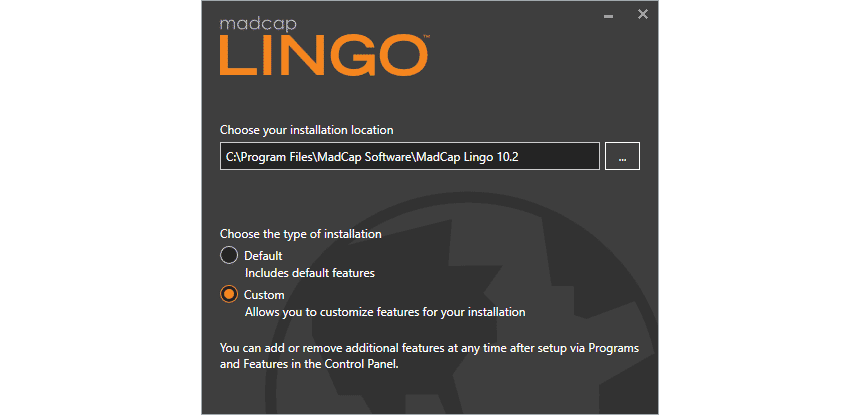
When you install MadCap Lingo, you now have two options available. Use the default settings, or the new Custom to customize features for your installation, including the option to install the documentation locally.
Find and Replace Enhancements
New enhancements have been added to the Find and Replace in Files feature in MadCap Lingo.
First Result per File
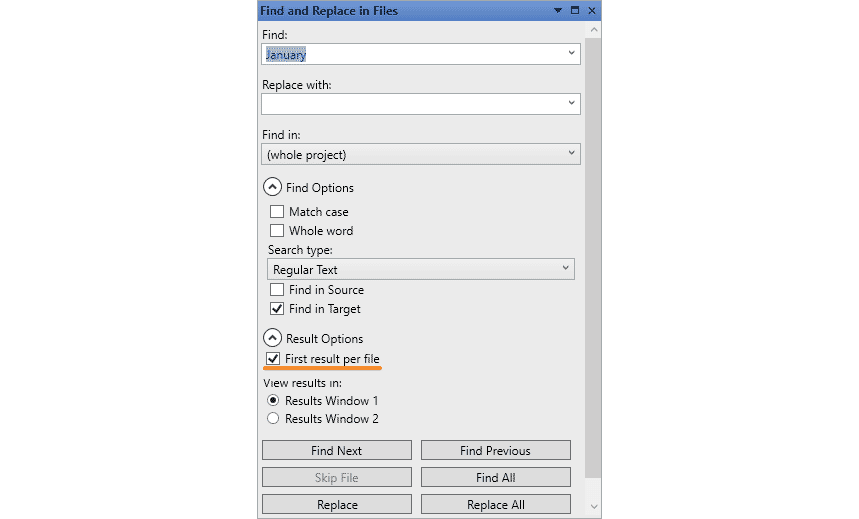
When you open the Find and Replace in Files window pane, there’s a new option for customizing results, called First result per file. This option lets you limit the results shown so a file displays a single time, even if the term appears multiple times.
Quick Find and Replace Widget Drop-down
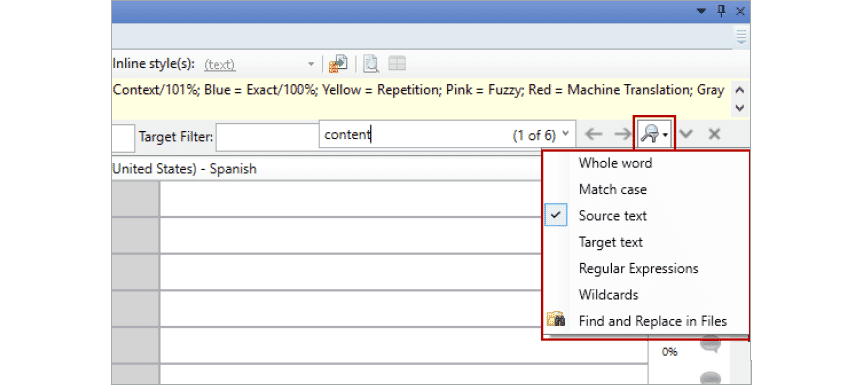
A drop-down arrow now appears next to the Filter button, making it easier to see that there are specific filtering options. These options include:
- Whole word: Lingo finds only whole words (e.g., if you enter "stand" as the search term, it will find "stand," but not "standing").
- Match case: Lingo finds only occurrences of the text that match the case (e.g., uppercase, lowercase) of the text entered in the "Find what" field.
- Regular Expressions: If you select this option, you can use regular expressions when you look for content.
- Wildcards: If you select this option, you can use wildcards when you look for content.
- Source text: Lingo finds only occurrences of the text that appear in source (untranslated) documents.
- Target text: Lingo finds only occurrences of the text that appear in target (translated) documents.
- Find and Replace in Files: This option opens the Find and Replace in Files window pane, which lets you perform more advanced searches, including global searches throughout the project.
Microsoft Team Foundation Server 2017 and 2018 Support
Using Microsoft Team Foundation Server (TFS) for source control? Lingo now supports TFS 2017/2018.
To view the full rundown of all the changes, take a look at our What’s New topic.
Get Started on a Free 30-Day Trial
As always, our free trials are fully functional, allowing you to deploy and test the product without any limitations. Plus, we can walk you through the features with a live product demonstration.
We hope you enjoy the newest release of MadCap Lingo! If you have any questions, feel free to reach out at jmorse@madcapsoftware.com.