The ability to quickly and easily insert formatted code snippets with syntax highlighting is now available in MadCap Flare 2020. We have seen customers use several methods to "prettify" snippets of code in their Flare outputs using external scripts and CSS magic but, this functionality is now a native feature in Flare 2020. This editor allows you to apply language-specific syntax highlighting, line numbering, code captions and more. The prettified code is supported in a variety of output formats, including print and online outputs. In HTML5 output, users can click a “Copy” button, then paste the code elsewhere as needed. On top of that, it is so easy to use!
Inserting Code Snippets
To insert a code snippet into a topic, select Insert > Code Snippet. This will open the Code Editor.

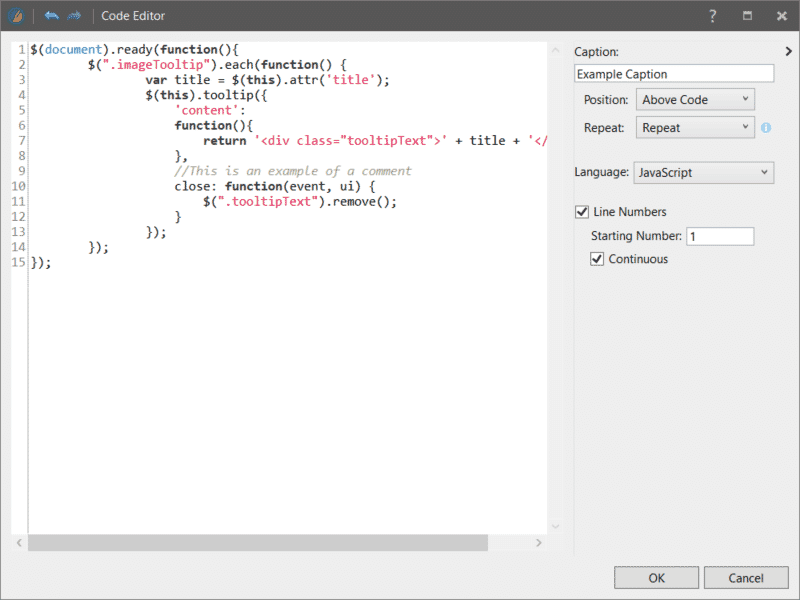
Here, you can paste in your code snippet, and there will be options that allow you to format this code the way you would like.
Caption
This option allows you to add a caption to the code snippet and control the positioning of the caption to appear above or below the code. There is also an option to repeat the caption where the code snippet encounters a page break in PDF output.
Language
Here you can select the programming language that the code is written in so that the code snippet will display with the proper syntax highlighting, and will look similar to how the code is formatted in text editors like Visual Studio Code or Sublime Text.
Line Numbers
This option allows you to include line numbers in the code snippet. You can also enable Continuous for the line numbers to continue across multiple code snippets. See the example below:
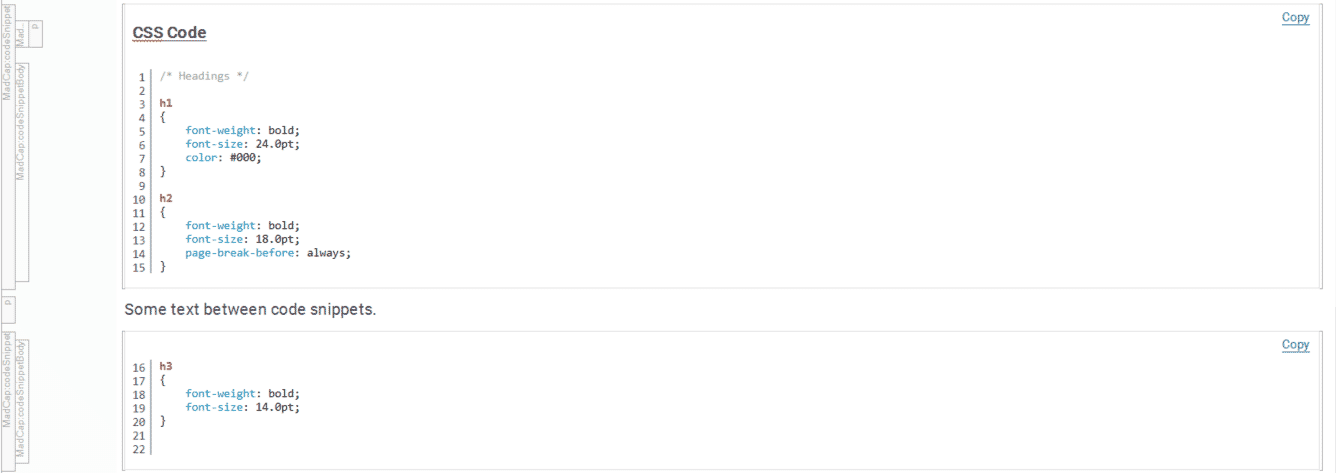
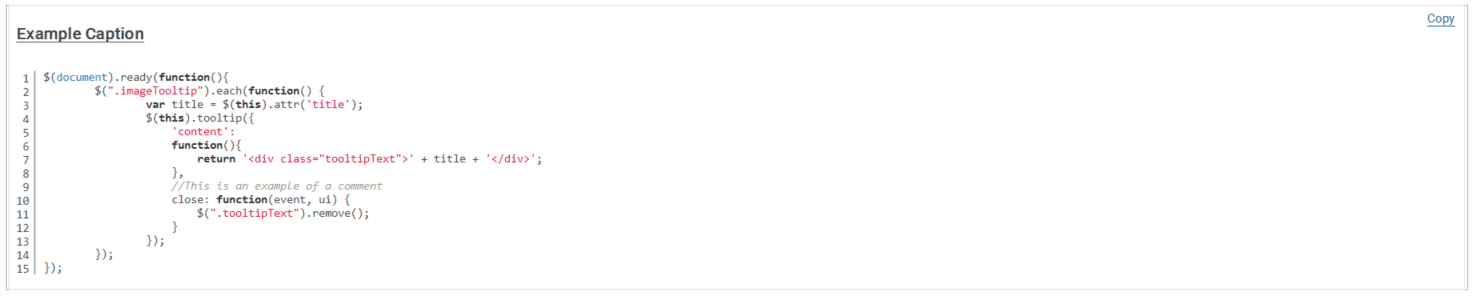
And here's our code snippet in HTML5. Now it's time to start customizing the formatting of this code snippet.
Styling
When a code snippet is inserted into a topic, it will be inserted as a MadCap:codeSnippet element. This is great because you can now apply styles as well as create style classes for the different elements within the code snippet, and completely control the formatting of these elements using Flare’s style sheet editor. You can also use stylesheet mediums to change the display based on the output.
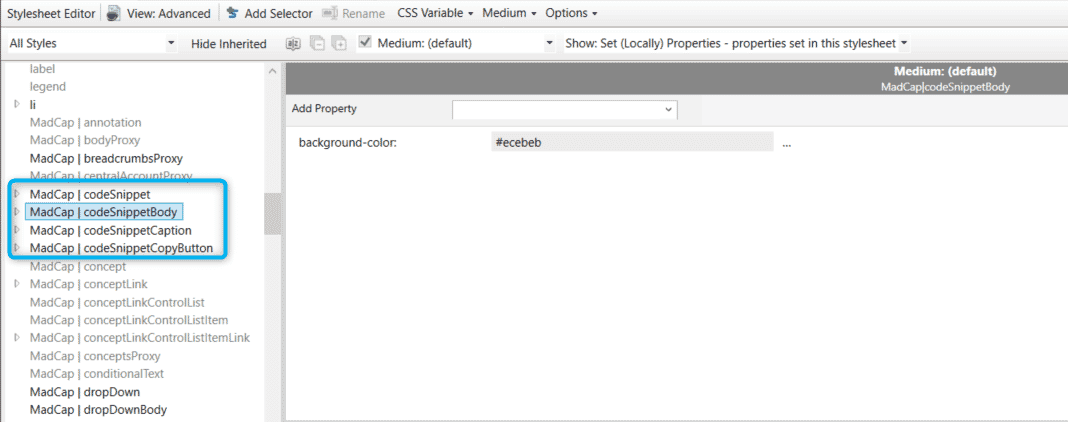
Here is an example of our code snippet after a bit of styling in HTML5 output:
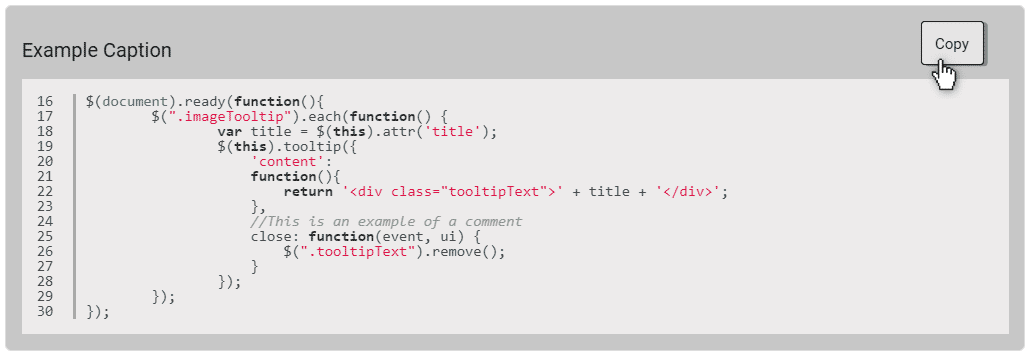
Here is how that same code sample looks in PDF:
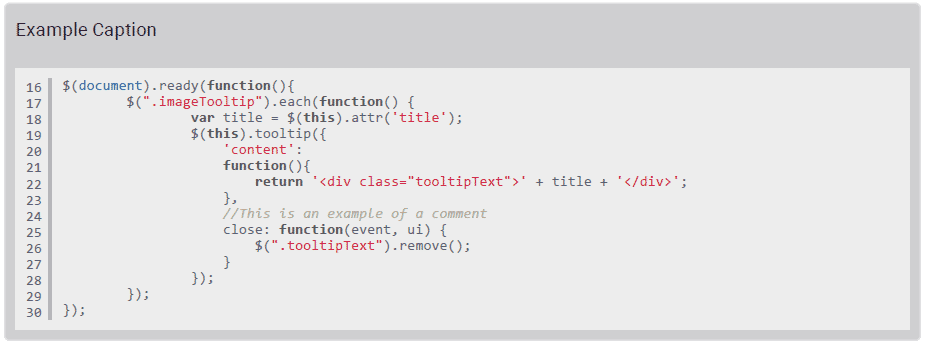
And there you have it! We now have our customized code snippet. Give it a try! If you have any questions about code snippets, feel free to leave a comment below, or reach out to me directly at klullo@madcapsoftware.com.