With each release of MadCap Flare, you often find a new feature that makes you happy. Maybe because it saves you a bunch of time, a bunch of clicks, or maybe because it’s just fun! For me, the new Dynamic Preview window pane in Flare 2017 is one of these features.
The ability to preview what a topic, snippet or master page will look like with certain target settings applied has always been available. Since topics are raw neutral content, invoking a quick preview of what it may look like when it’s generated into a PDF can be really handy. You might want to check out how it fits in the margins you have set up for your PDF outputs, or perhaps page break behavior if it happens to be a longer topic. You don’t have to generate the entire target just to see how the topic will look or flow.
With previous versions of Flare, if you want to preview what a Topic, Snippet or Master Page will look like in a target, you would click the preview button in the XML editor:

However, if you want to make a quick change to the file, see the file with different target settings, or preview a different topic, snippet, or master page altogether, you have to close the Preview window first.
In Flare 2017, the preview window is dynamic, allowing you to keep the preview open while you work and see changes as you make them in the XML Editor.
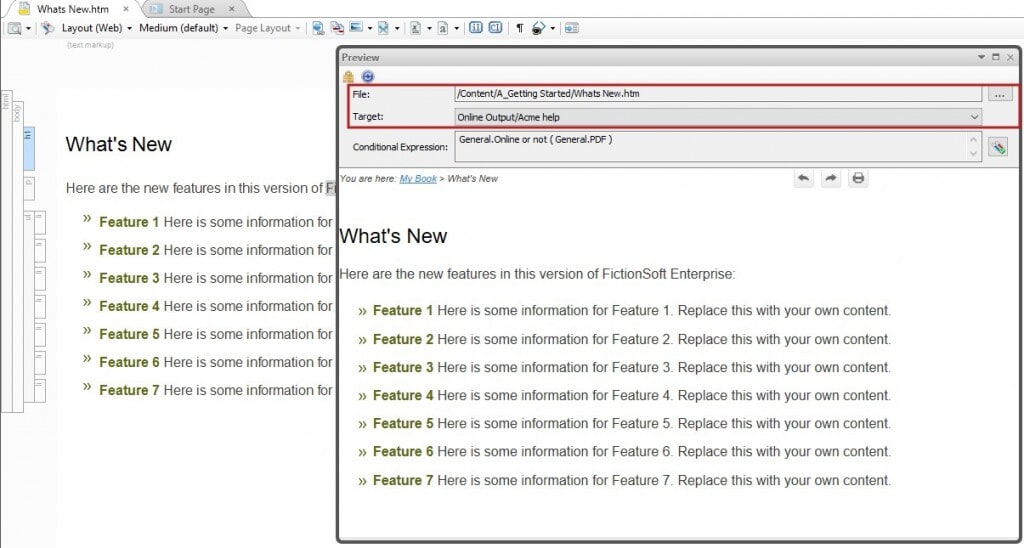
The ability to apply a conditional tag in the preview window to see how it may affect the file has always been available. With the new preview window, you can also choose to preview a different topic, snippet or master page in your project, or toggle to preview the file in a different target altogether, without having to close the preview window, load the file in the editor, and invoke the preview again.
We are saving clicks, which is always a good thing!
When the preview window is opened, it floats. However, if you have a dual monitor set up, you can drag the preview window over to the second screen and keep it open. Another option —you can dock it so that it locks itself in place:
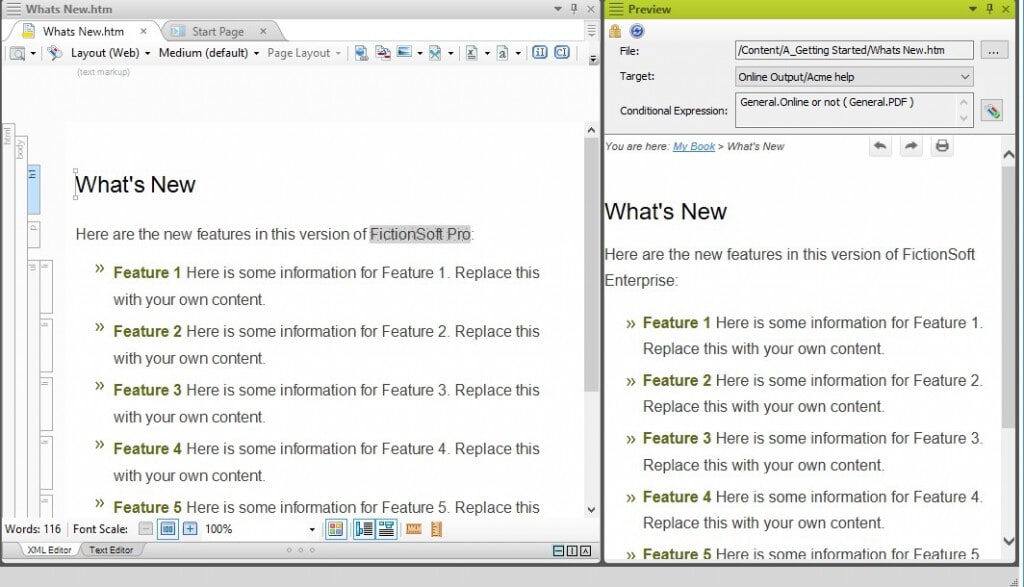
The dynamic preview window was built with the idea to reduce clicks, and can really help speed up development time. If you have had the opportunity to try it, let me know what you think!
Get Started On a Free Trial
Want to try out the Dynamic Preview window on your own? If you’re not taking advantage of the latest version of Flare, you can get started on a free, fully functional 30-day trial anytime. During the duration of your trial, you have free access to our technical support team, ready to answer any questions you may have.
You can request your free trial here:
We hope you enjoy the latest release of MadCap Flare! If you have any questions, feel free to reach out at jmorse@madcapsoftware.com.