As a Sales Engineer, I am constantly interacting with various customers. During demonstrations, I have the opportunity to hear directly from users about their pain points or even features they would like to see more of within MadCap Flare. A big request that I hear is the ability to sort tables in a Flare generated HTML5 output. This piqued my interest, so I began looking into ways that users can implement HTML sortable tables into their Flare projects. In my research, I found a free jQuery plug-in called DataTables that is fairly quick and rather easy to setup within Flare with only a few steps. What is DataTables? This plugin allows you to sort tables, search within your tables using dynamic filtering capabilities, as well as, paginate your tables in your HTML5 outputs. Keep reading to learn more about how to sort table data in HTML using Javascript and how to add these interaction controls to your HTML tables with DataTables.
Note: The DataTables plug-in requires tables to have a header row (thead) for them to be sortable. Keep this in mind when creating your sortable table.
Preliminary Step:
First, download the DataTables library from the following link: DataTables Download.
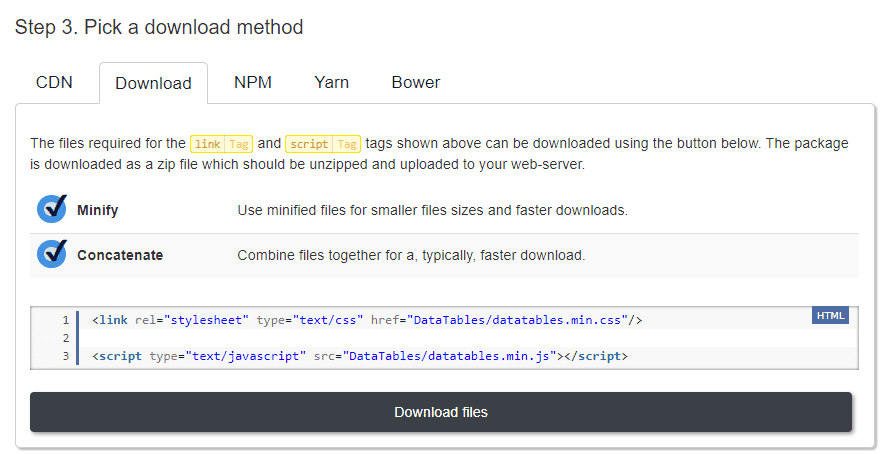
I recommend keeping the default options. On Step 3, select the Download tab, then click "Download files."
Implementing the jQuery Plug-in
Once the ZIP archive has finished downloading, right-click on the zip and extract the files to a folder on your machine. Follow these steps to get the jQuery plugin into your Flare project:
- Copy the DataTables folder that you extracted.
- Navigate to the Content Explorer of your Flare project
- Right-click the Resources folder and select Open Folder in Windows
- Paste the DataTables folder into the Resources folder
Once this is done, we will need to add a reference to the CSS file, as well as the JS file in the master page of the project. The following steps should be done for any master page that is applied to a topic that contains a table.
- Go to Resources > MasterPages. Open the master page and switch to the Text Editor.
- Inside the <head> tags, add a <link> tag with the relative path to the jquery.dataTables.css file as the value of the src attribute, for example:
<link rel="stylesheet" type="text/css" href="../DataTables/DataTables-1.10.20/css/jquery.dataTables.css" />- Just before the closing </body> tag, add the following <script> tag:
<script type="text/javascript" charset="utf8" src="../DataTables/DataTables-1.10.20/js/jquery.dataTables.js"></script>- Following the closing </script> tag, we will need to call a function. Add the following tag <script> tag:
 <script>
 $(document).ready( function () {
 $('#myTable').DataTable();
 } );
 </script>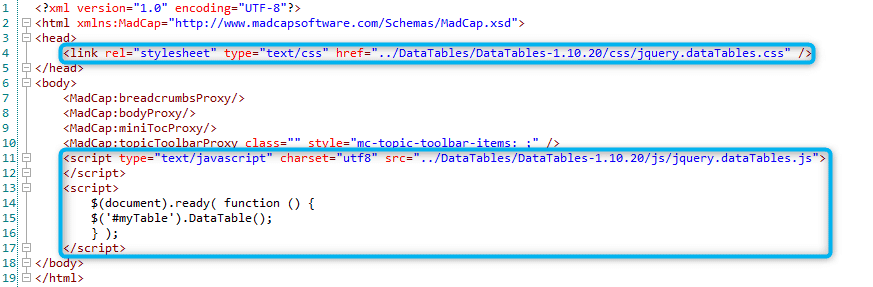
Note: This example of the function is calling an ID of "myTable". This allows you to select which tables you would like to sort in your output, and it allows you to use your custom Table Styles. However, there are a few different options to choose from when using the sorting functionality. For instance, you could edit this script so that every table using a specific Table Style will be sortable, or so that every table in your output will be sortable.
ID Method
If you would like to use the ID method, please follow these steps:
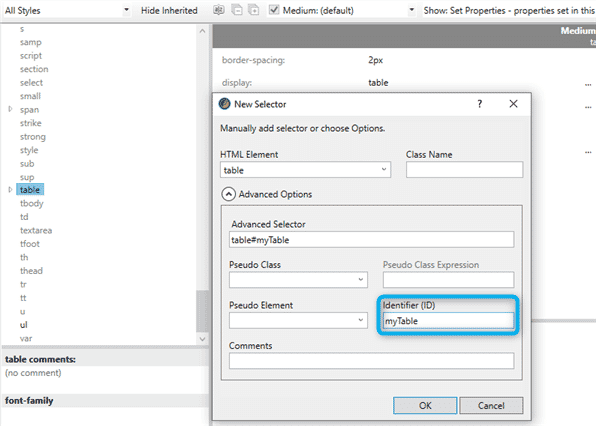
- Open your stylesheet
- Right-click the table element and select Add Selector
- In the Add Selector dialog, select Advanced Options
- Enter myTable into the Identifier (ID) field
- Open a topic with a table you would like to sort
- Right-click the table element from the structure bar and click Select > Table
- Select table#myTable from the Style drop-down on the Home Ribbon, or from the Styles Window
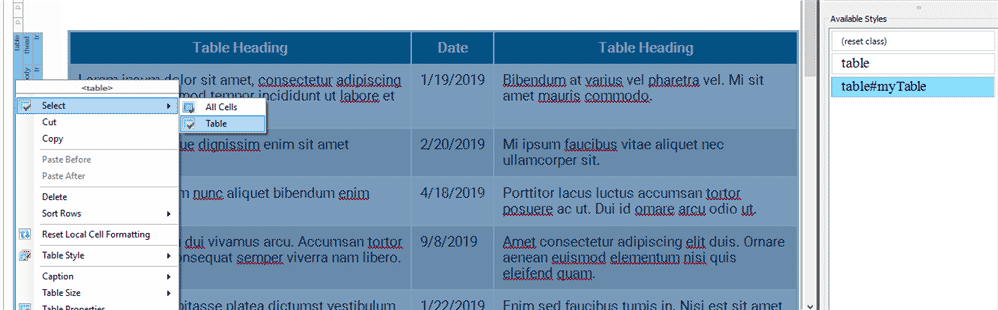
Table Style Method
If you would like to have all tables that are using a specific Table Style to be sortable, you can replace '#myTable' from the script with the name of your Table Stylesheet class. For example, if your Table Stylesheet is named Basic.css, the script would be as follows:
<script>
 $(document).ready( function () {
 $('.TableStyle-Basic').DataTable();
 } );
 </script>
Related: How to Create a CSS Stylesheet
Every Table Method
If you would like every table in your output to be sortable, use the following script:
<script>
 $(document).ready( function () {
 $('table').DataTable();
 } );
 </script>
And there you have it! Build your HTML5 output, and you'll notice that you now have HTML sortable tables!
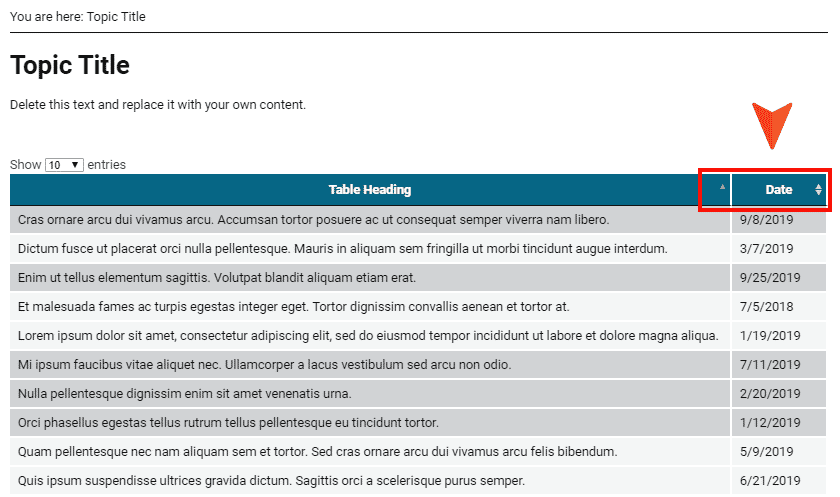
For reference, a copy of a sample project of an HTML table sort is available here.
If you have used table sorting in creative ways to expand the functionality of your MadCap Flare output, let us know in the comments below!
Editor’s Note: Originally published on February 17, 2020 and refreshed on May 24, 2021.